Guide
Google Calendar on your new tab
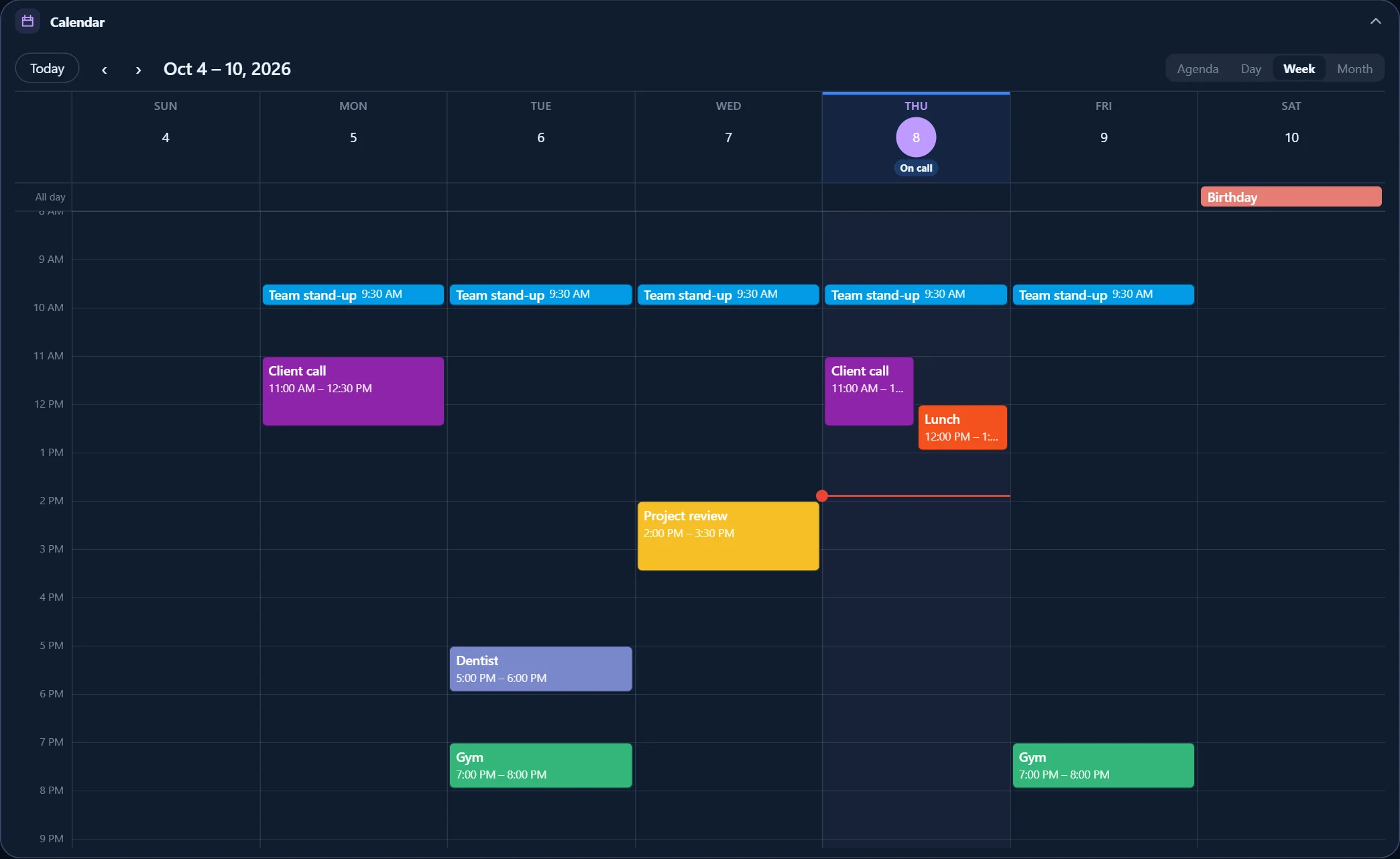
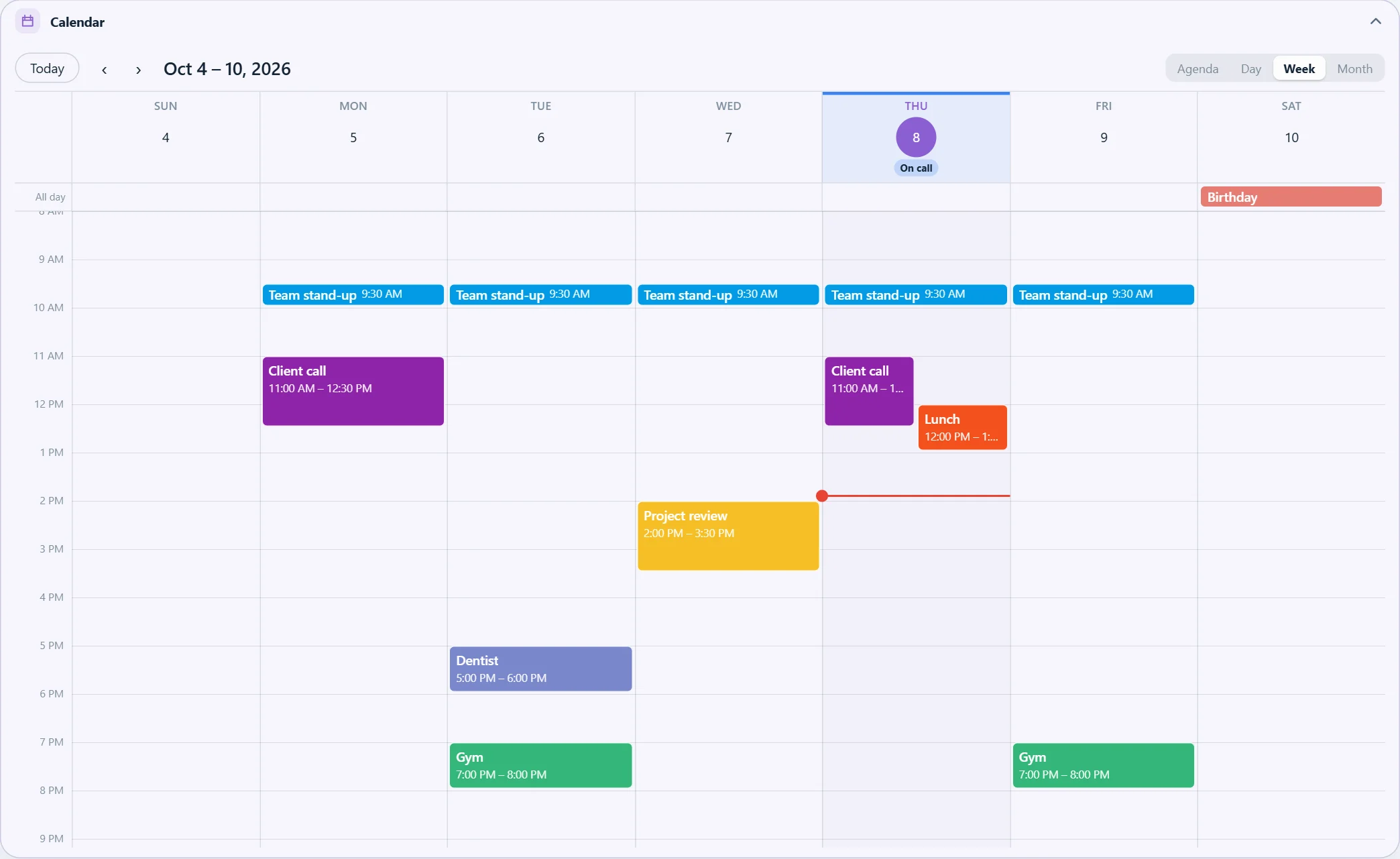
With LookTab, every new tab shows your Google Calendar — a compact agenda when the widget is small, Day, Week and Month views when it is large.
What you get
The calendar widget brings your Google Calendar events next to everything else on your board.
- A compact agenda with what is on now and next, and a Join button for video calls.
- Make the widget bigger for Day, Week and Month views like Google Calendar.
- Several calendars at once, each in its own colour.
- Mark days with your own categories — shifts, leave, school — right on the month.
How to set it up
- Add LookTab from the Chrome Web Store and open a new tab.
- Add the Calendar widget from the widget gallery (or start from a template).
- Open the widget's settings and choose Connect Google Calendar; sign in to your LookTab account first if asked.
- Allow read-only access in Google's window, then tick the calendars you want to see.
- Drag the widget's corner to make it bigger and switch between Agenda, Day, Week and Month.
Read-only and private
LookTab only reads your calendar list and events; it never creates, changes or deletes anything. Google has verified LookTab's use of these calendar permissions. You can disconnect at any time in the widget's settings or in your Google account.
Questions
Can I add or edit events from LookTab?
No. The connection is read-only on purpose. Clicking an event shows its details, and you can open it in Google Calendar to edit it.
Do I need a LookTab account for the calendar?
Yes, for Google Calendar a free LookTab account is needed, because the connection is kept on our server so it works on all your computers. Other widgets work without an account.
Does it show more than one calendar?
Yes. Choose any of your calendars in the widget's settings; each keeps its own colour.
Open a tab. See your day.
Set up in a minute. No account, no ads, no fuss.
For Chrome, Edge, Brave and other Chromium browsers